|
Sharing Dashboards |
Scroll |
How do I share a Therefore™ Dashboard?
1. In the Therefore™ Dynamic Web View, click the Dashboard symbol  to enter into the Therefore™ Dashboard configurations.
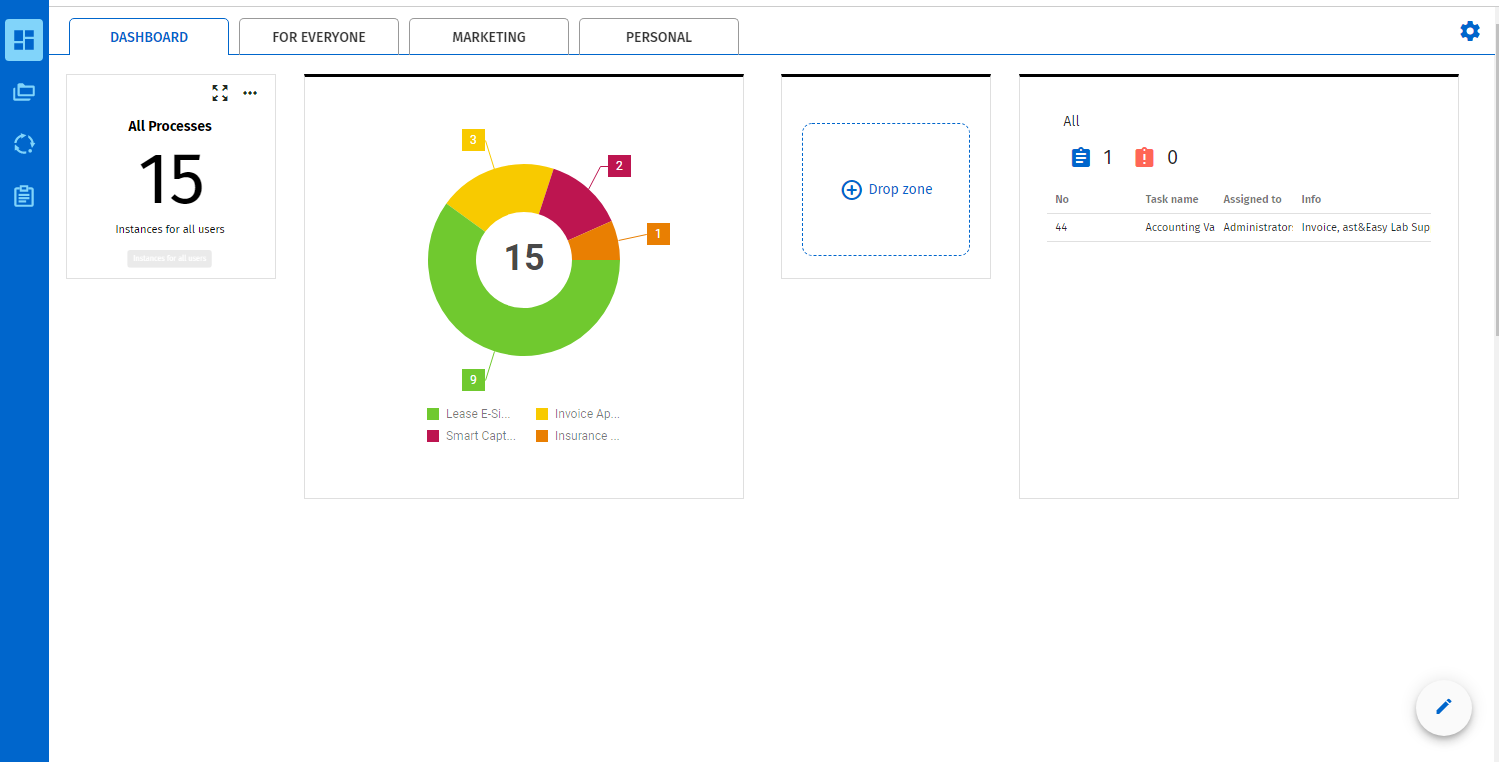
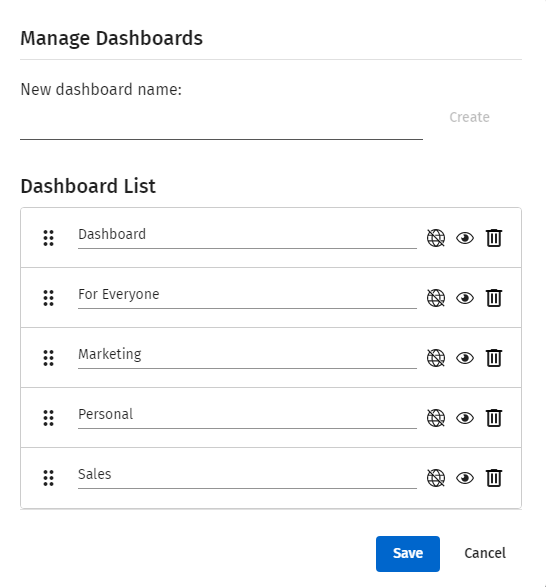
2.In the Therefore™ Dashboard properties, click the settings symbol  to enter the 'Manage Dashboards' dialog.
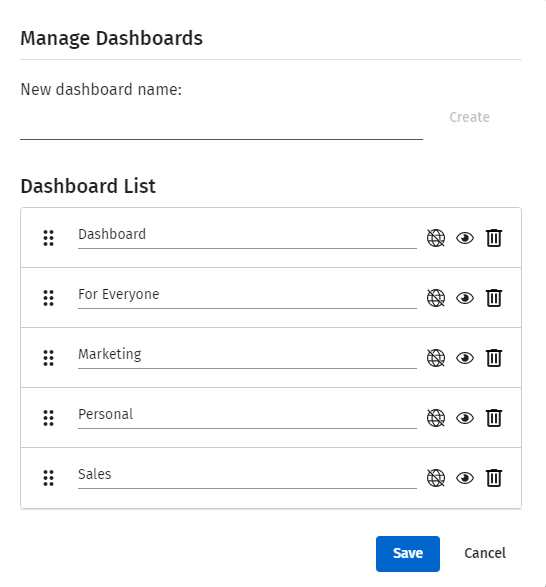
3.In the 'Manage Dashboards' dialog, click the share symbol  next to the dashboard your intend to share; this will prompt a 'Share Dashboard' dialog to appear.
4.In the Share Dashboard' Dialog, select from the folder you intend to share the Therefore™ Dashboard using the drop-down list.
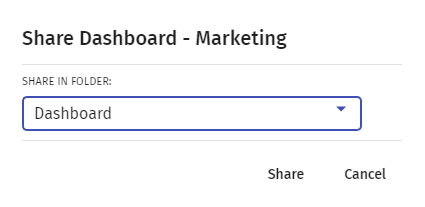
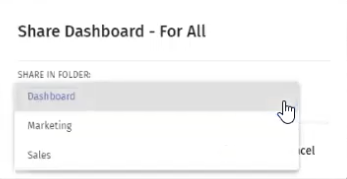
5.Once the folder has been selected, click 'Share'.
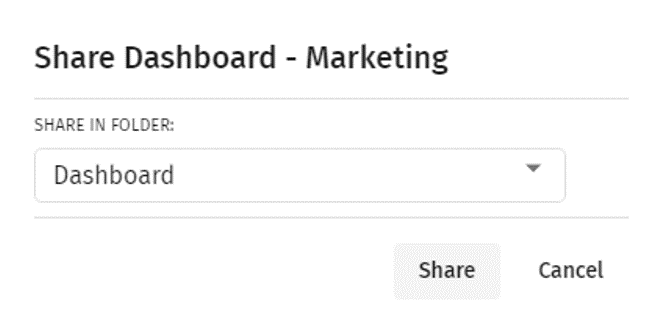
6.In the 'Manage Dashboards' folder, then click on 'Save'. This will automatically permit configured users of the specified folder to access the configured Therefore™ Dashboard.
|
Note:
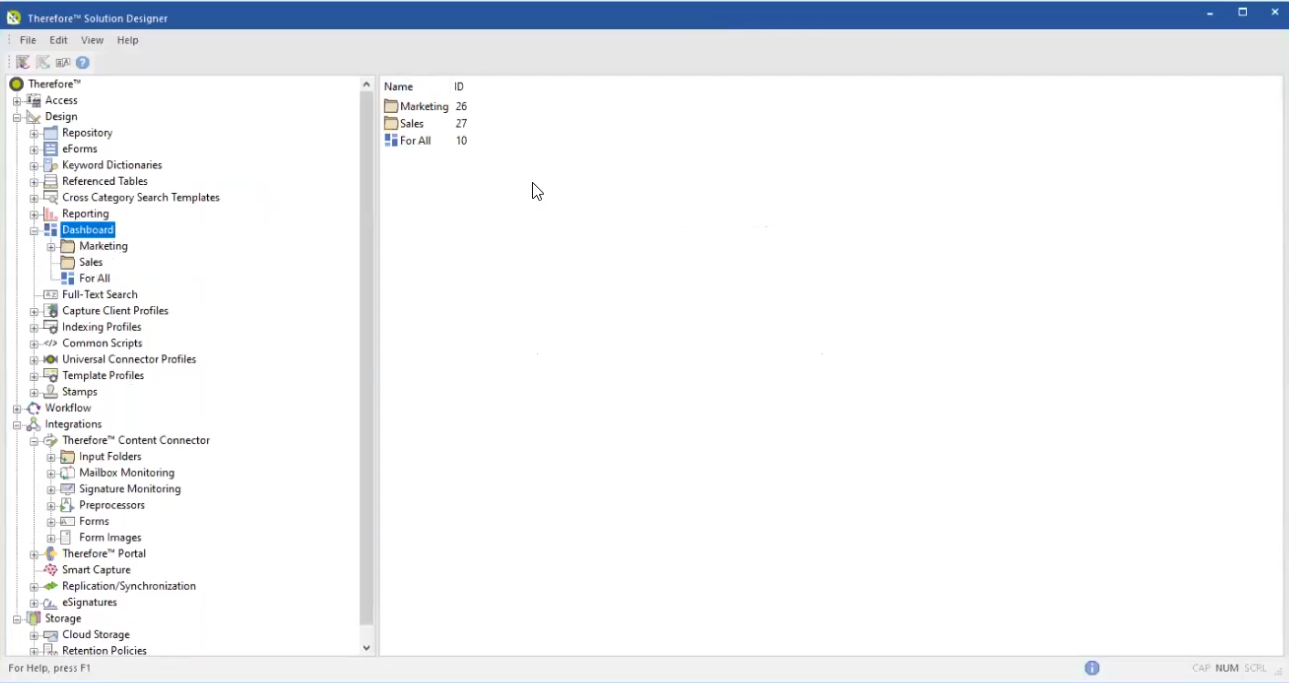
The configurable Therefore™ Dashboard folders are created in the Therefore™ Solution Designer under the Dashboard node.
|